First run
When to read this. You've never used condash. You want to get to a working dashboard on your machine in one sitting, with a tree of realistic items to poke at before you commit to building your own.
By the end, you'll have condash installed, running against the bundled conception-demo tree, and the Projects, Code, Knowledge, and History tabs will all render with content.
1. Install condash
Both install condash into its own isolated venv and put it on your $PATH. The install is self-contained on Linux, macOS, and Windows — the native-window backend (pywebview[qt] → PyQt6 + PyQt6-WebEngine) is a normal Python dependency, so there's no system-level Qt or GTK step. Install size is about 100 MB.
Verify:
If you see command not found, run pipx ensurepath and reopen the shell.
2. Fetch the demo tree
The condash repo ships a realistic demo tree at examples/conception-demo/. It has nine items, all six statuses, a knowledge tree, and two deliverable PDFs — enough for every feature in the rest of the tutorials to have something to act on.
Copy it into a working location:
mkdir -p ~/conception-demo
curl -fsSL https://codeload.github.com/vcoeur/condash-python/tar.gz/main \
  | tar -xz --strip-components=2 -C ~/conception-demo \
      condash-main/examples/conception-demo
Inspect what you got:
~/conception-demo/
├── README.md
├── config/
│   ├── preferences.yml
│   └── repositories.yml
├── projects/
│   ├── 2026-03/         # items created last month (2 done)
│   └── 2026-04/         # 7 items created this month (3 now, 1 review, 1 soon, 1 later, 1 backlog)
└── knowledge/
    ├── conventions.md
    ├── internal/
    └── topics/
Everything is plain Markdown. Open projects/2026-04/2026-04-02-fuzzy-search-v2/README.md in your editor to see the header format.
3. Point condash at the tree
This writes a commented template to ~/.config/condash/config.toml. Edit it and set a single line:
Everything else in the template can stay commented out — we'll fill those in later.
4. Launch
A desktop window opens. You should see this:
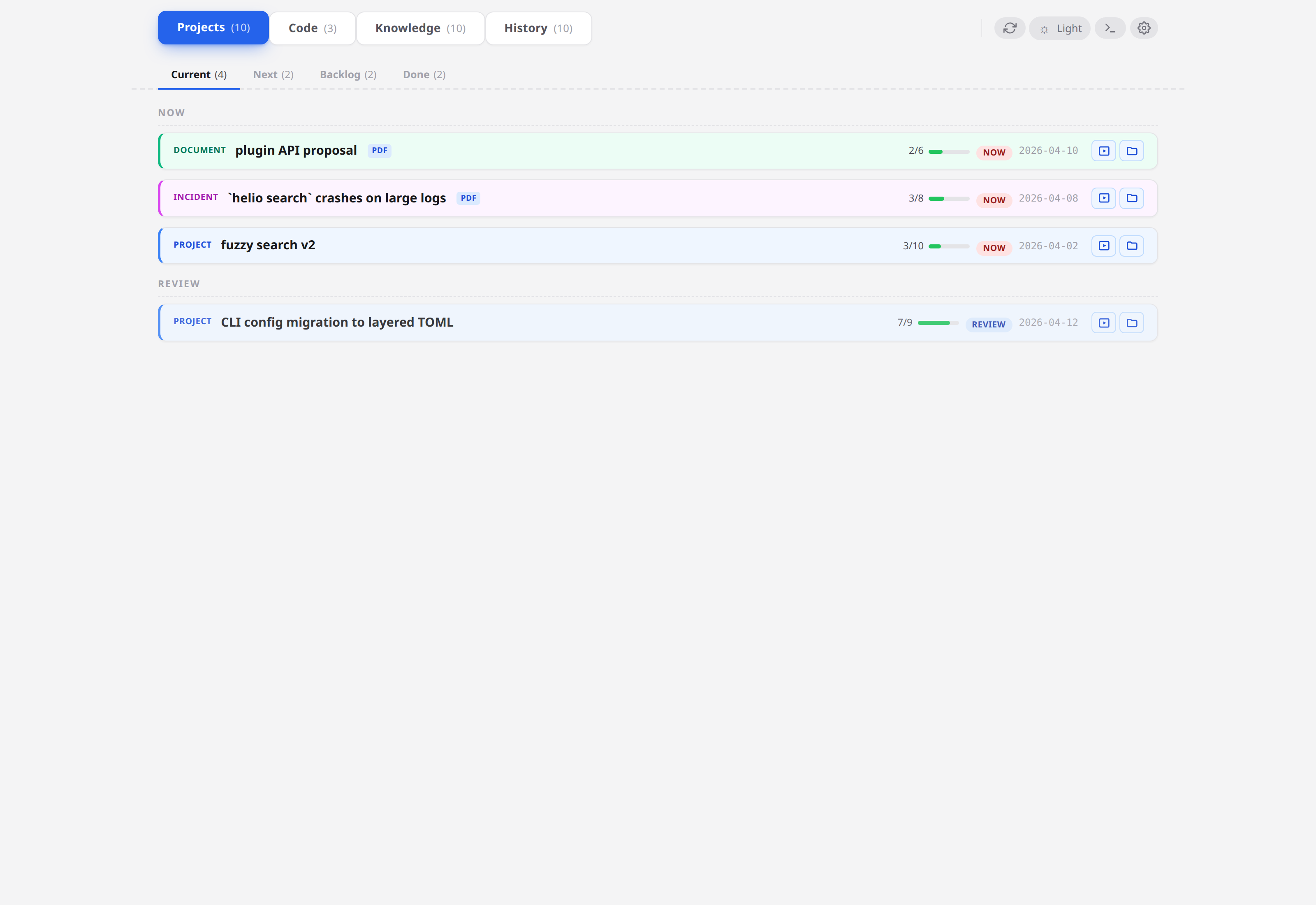
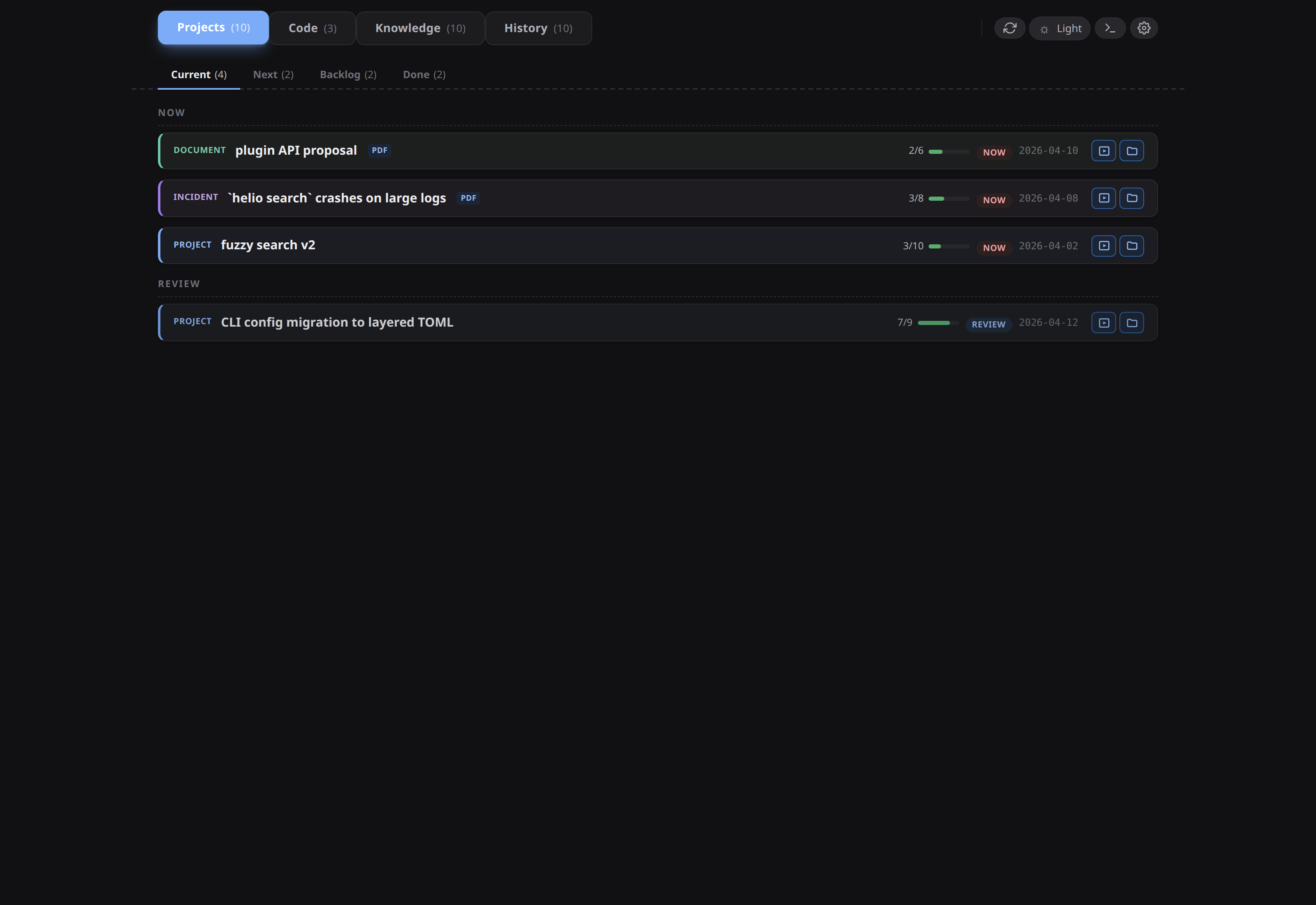
The header shows four top-level tabs with counts: Projects (9), Code (3), Knowledge (8), History (9). Under Projects, the sub-tabs are Current / Next / Backlog / Done. The demo tree was built so every bucket has something in it.
5. Walk around
Take two minutes to click through:
- Current — 3 items with status
now(one of each kind: document, incident, project) and 1 item with statusreview. Click the fuzzy-search-v2 row; the card expands, showing the README on the left and a step list on the right with all four marker states ([x],[~],[ ],[-]). - Next — the soon bucket. One project (
json-export). - Backlog — one project, parked.
- Done — two archived items from the previous month.
- Code — three repos: condash scanned
workspace_path: /tmp/conception-demo-workspacefromconfig/repositories.ymland found one.git/per entry. (If the Code tab shows 0, the workspace path on your machine doesn't exist yet — we'll set that up properly in Your first project.) - Knowledge — the
knowledge/tree rendered as an explorer:conventions.mdat the root,InternalandTopicsfolders with index files. - History — full-text search across every item + note. Type
fuzzyto see ranked matches.
Click the gear icon in the top right to see the Configuration modal with three tabs — General / Repositories / Preferences. Everything there maps to keys in either ~/.config/condash/config.toml (machine-local) or conception-demo/config/*.yml (tree-versioned). You'll use this modal in the next tutorial.
6. Close the window
Closing the native window exits condash. Relaunch with condash whenever you want to come back — state lives in the files, not in the app.
What you just learned
- Installing condash is a single
pipx/uvcommand; no system prerequisites. condash init+condash config editis the setup flow; the only mandatory field isconception_path.- The dashboard renders the files as-is on every page load. There's no database, no watcher, no cache.
- The tree has two config files — one per-machine (TOML), one versioned with the tree (YAML). We'll dig into that split in Configure the conception path.
Next
Your first project → — create a real item, wire its steps, link it to another item, add a note.