A day with condash
When to read this. You've done First run and Your first project. You want to see the full workflow: not just "how do I create an item?", but "what does a day of real work look like when this tree is your work tracker?".
By the end, you'll have walked through the loop most people use condash for — open item, open its repo, edit, build, document, push, close — and know which surface each step uses.
The scenario
You're the helio maintainer. A user filed an incident this morning: `helio search` crashes on large logs. In the demo tree it's already open at projects/2026-04/2026-04-08-search-crash-large-logs/, status now, severity high, environment PROD. The first two investigation steps are done; the third is in progress. You're going to take it forward.
1. Open the item
Launch condash if it isn't running:
Click the Current sub-tab and click the helio search incident row. The card expands.
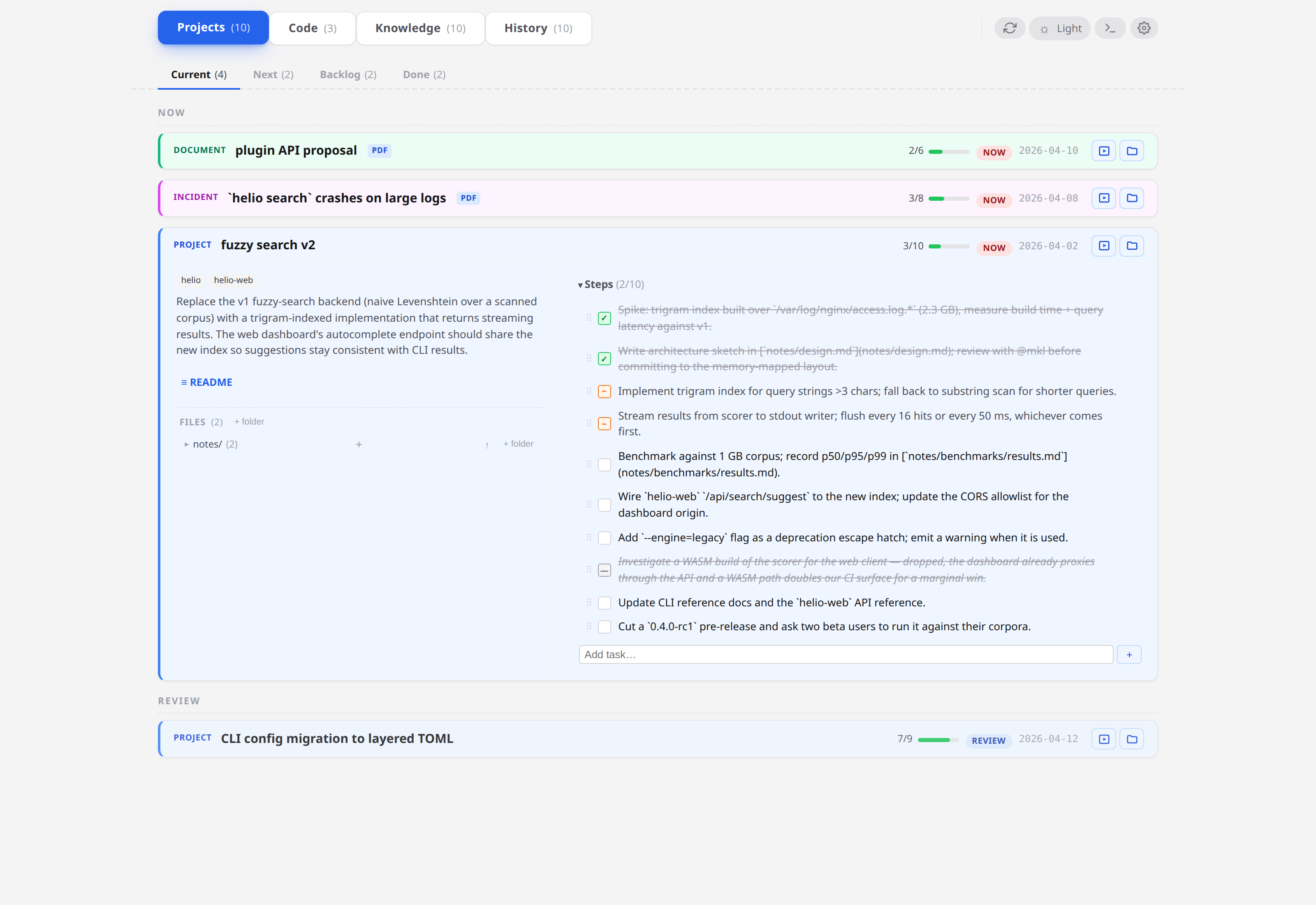
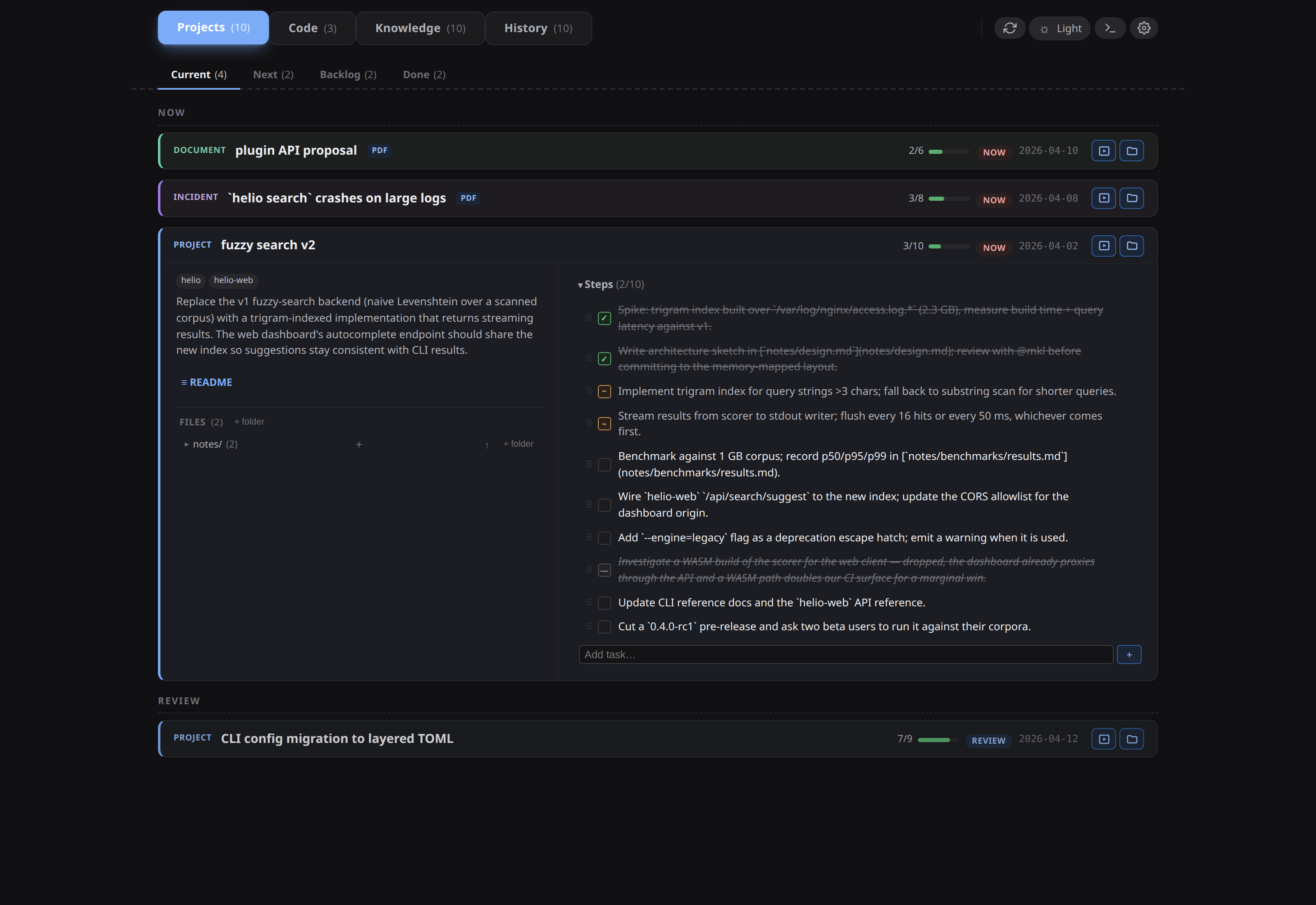
(Screenshot is of a project card; the incident layout is identical except for the pink INCIDENT badge and the Environment / Severity header fields.)
Read the README. The summary points at a specific test corpus, and the notes/stack-trace.md note has the actual Python traceback from the reporter.
2. Open the repo from the repo strip
Switch to the Code tab. Three helio repos render as rows: helio, helio-web, helio-docs. The helio row has a 1 changed pill — you left a WIP note there last week.
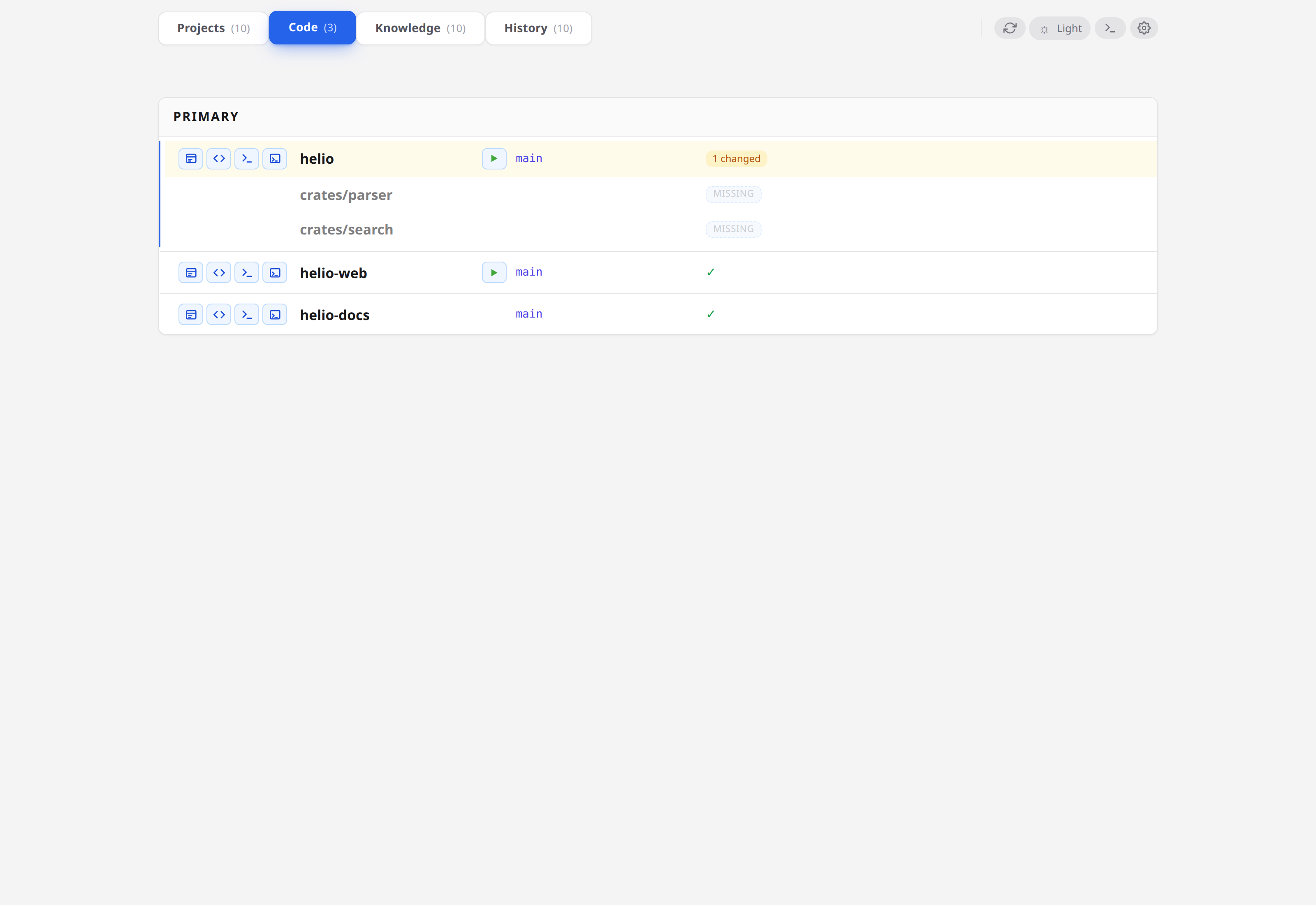
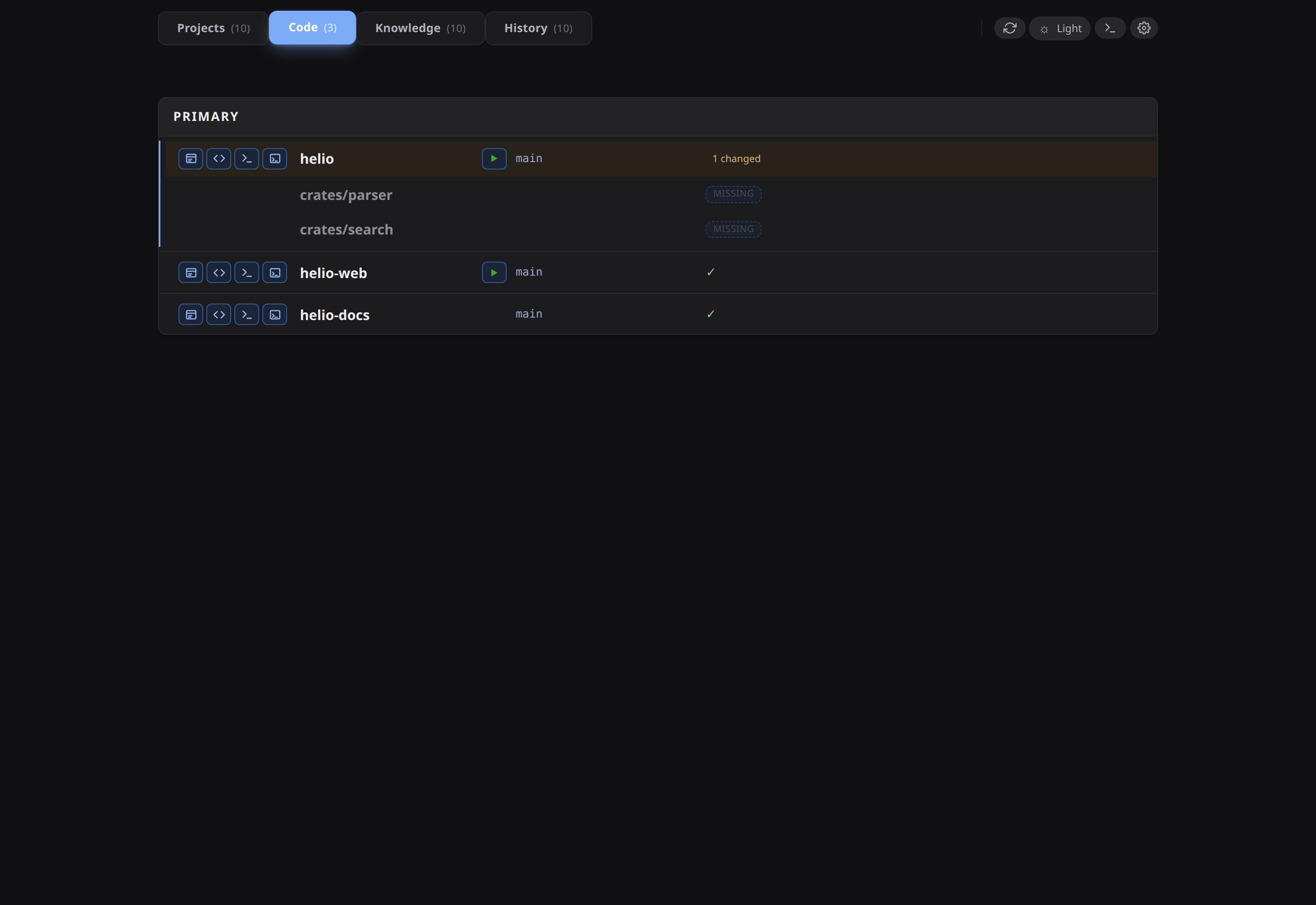
Each repo has four icon buttons: README preview, code browser, embedded terminal, and "open in main IDE". Click the IDE icon on helio — your main editor launches in that directory.
The launcher command chain lives in config/repositories.yml, under open_with.main_ide.commands. The dashboard tries each command until one succeeds. See Repositories and open-with buttons for how to wire your own editor in.
3. Run the repro in the embedded terminal
Click the terminal icon (>_) in the header — a pane opens beneath the dashboard with a real bash prompt.
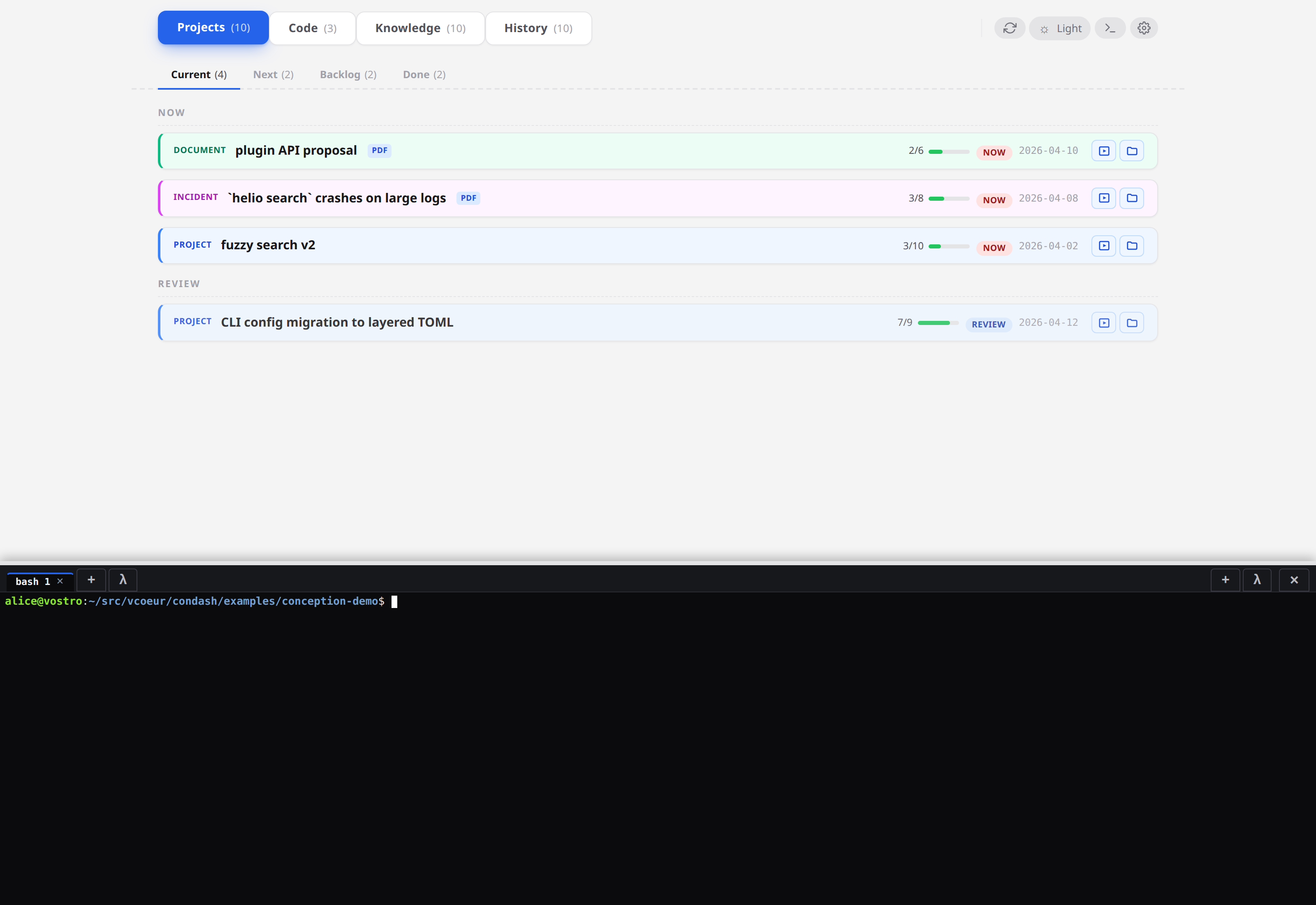
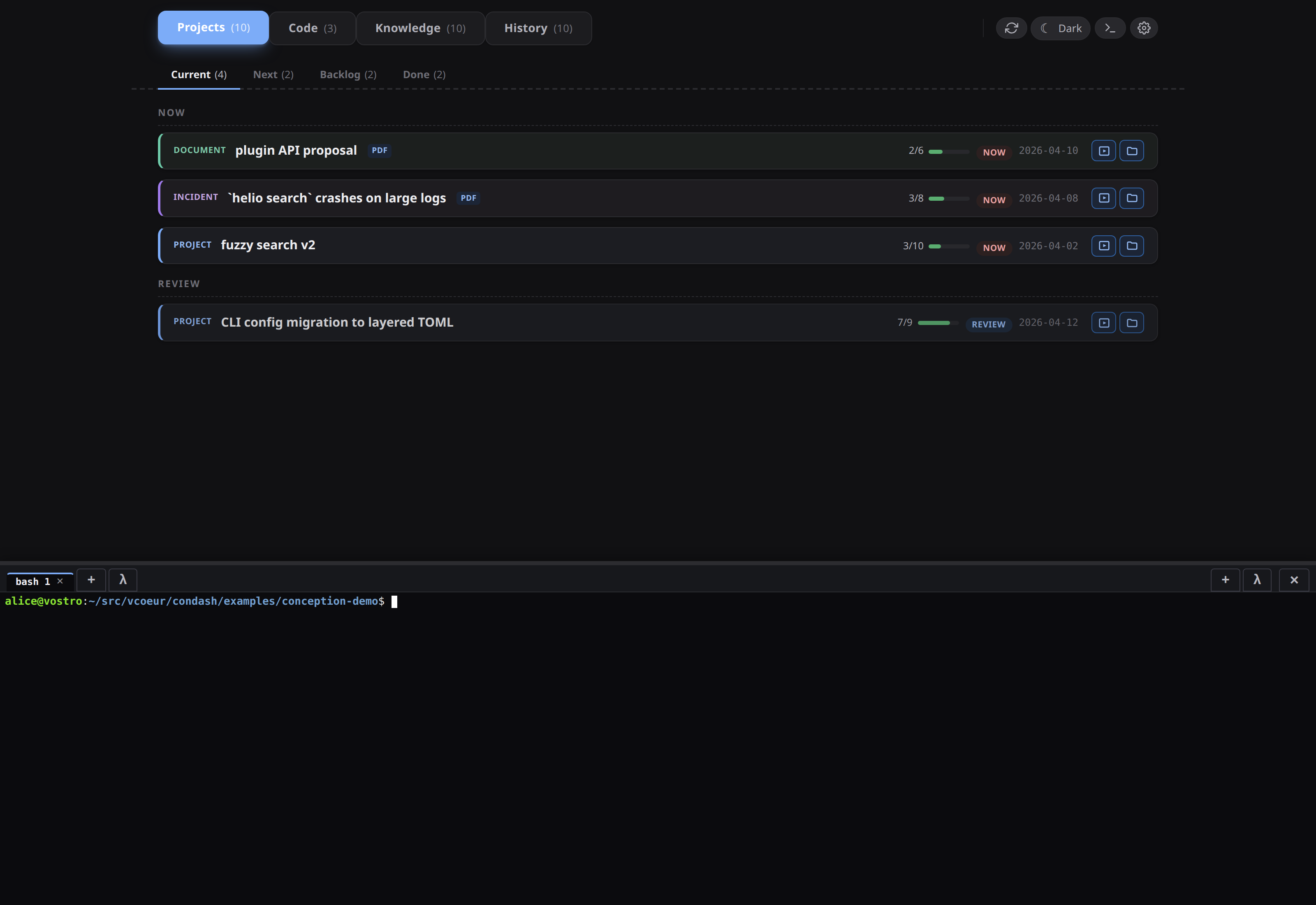
Cwd is already set to wherever you were, and TERM=xterm-256color. Run the repro from the incident's notes/repro.md:
cd ~/src/helio
cargo build --release
./target/release/helio search --format=json /tmp/fixtures/1g-corpus.log 'ERROR'
You get a thread 'main' panicked at 'attempt to subtract with overflow' — confirmed reproducible. While the build was running, the terminal scrollback captured the traceback; paste it into the item by switching back to the card, opening notes/stack-trace.md, and dropping the new trace at the bottom. The Save button lights up as soon as you type — click it or hit Ctrl+S. If you try to close the note pane with unsaved edits still in the buffer, condash asks before discarding.
The terminal has two useful quality-of-life features:
- Screenshot paste — press
Ctrl+Shift+Vanywhere in the dashboard and condash inserts the absolute path of the newest file in your configured screenshot directory into the active terminal prompt. Useful for "take a screenshot of the crash → paste the path into anls -laor acat". Configurable under the gear modal's Preferences tab. - Multiple tabs — click the
+in the terminal pane header to open a second tab; each tab keeps its own bash session and scrollback even when you toggle the pane closed.
See Use the embedded terminal for the full feature set.
4. Edit code, toggle steps as you go
Fix the panic in your IDE (in this tutorial you don't have to — the helio repo is a stub). Come back to the dashboard whenever you finish a step and tick its checkbox. The progress counter on the card header (3/8 → 5/8) updates instantly.
5. Document what you did
Incidents ship with a notes/ folder and often end up with a deliverable PDF in deliverables/. In the demo, search-crash-large-logs/deliverables/incident-report.pdf is a placeholder. Generate your real report from the README + notes:
cd ~/conception-demo/projects/2026-04/2026-04-08-search-crash-large-logs
bash ~/.claude/scripts/md_to_pdf.sh notes/investigation.md deliverables/incident-report.pdf
Refresh the dashboard; the PDF badge on the item row lights up and the Deliverables section in the expanded card now offers a download link.
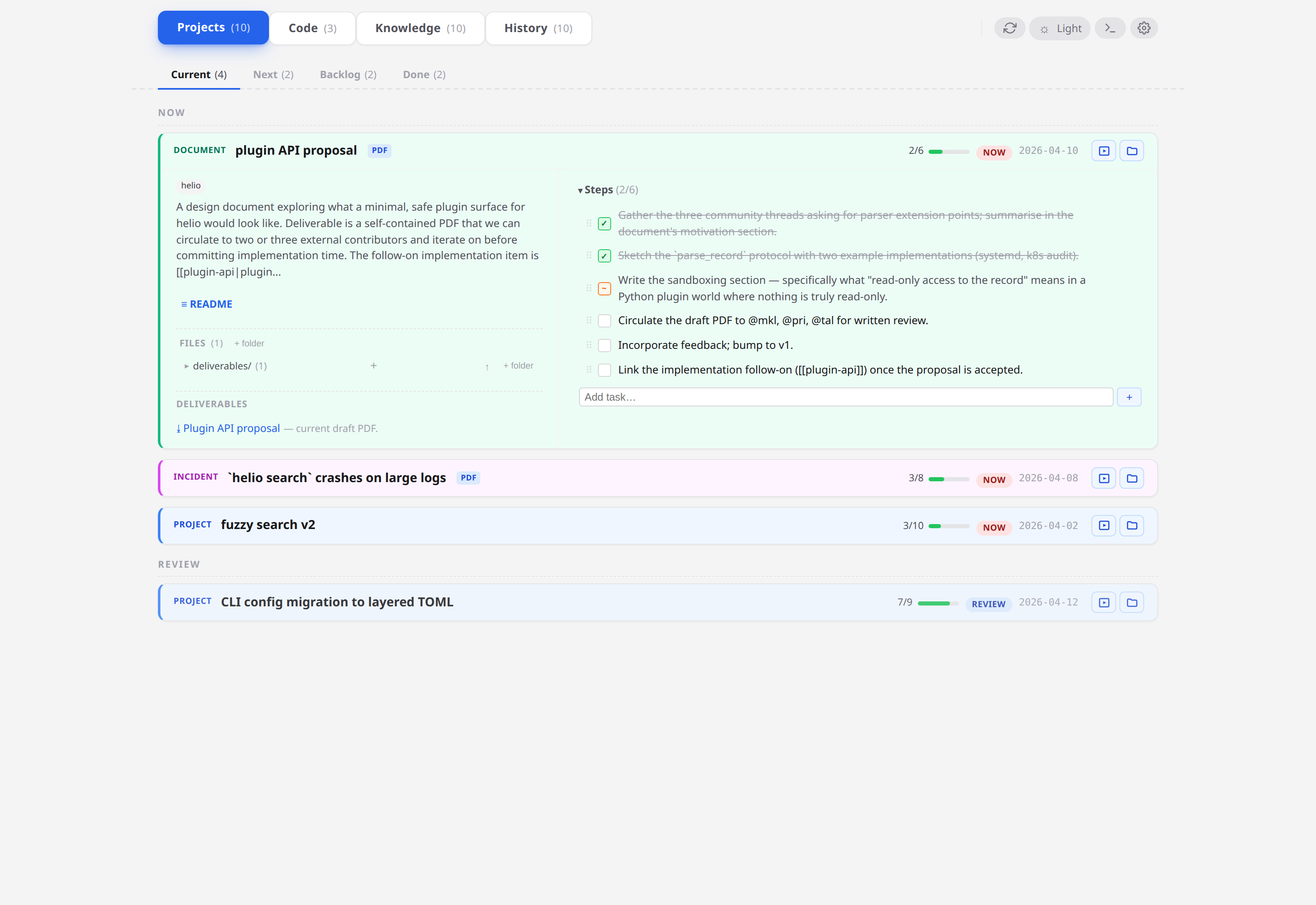
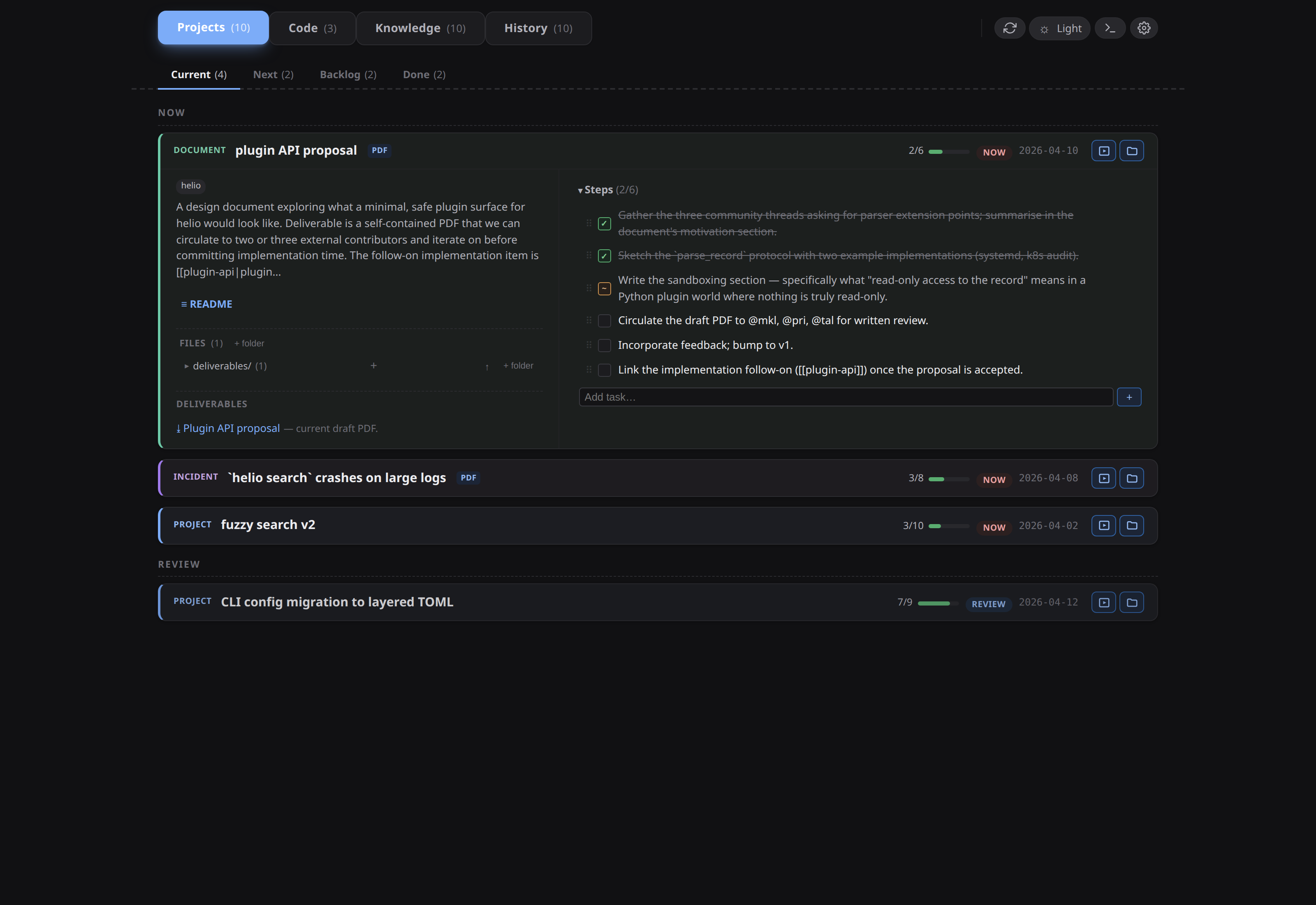
Clicking the link opens the vendored PDF viewer in a modal — no OS handler involved.
6. Push a PR
From the embedded terminal:
cd ~/src/helio
git switch -c fix/search-large-logs
git add -A
git commit -m "Guard overflow in search byte offsets"
git push -u origin fix/search-large-logs
gh pr create --fill
If you've installed the /pr skill, the PR body will pull its structure from the item's README automatically. The incident is now waiting on external signal — the merge. Change the item's status from now to review by clicking its status pill. The dashboard rewrites the README's **Status**: line.
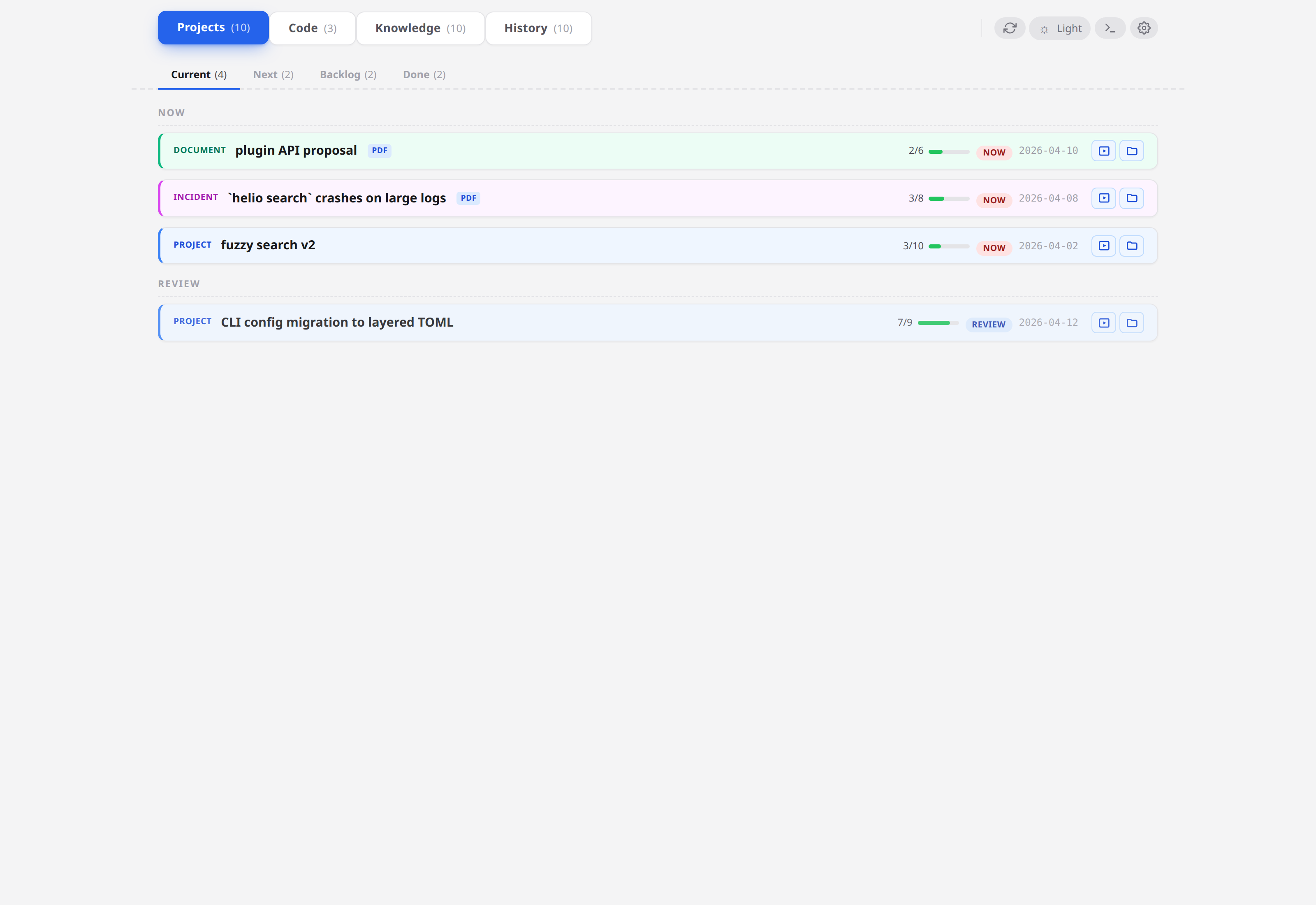
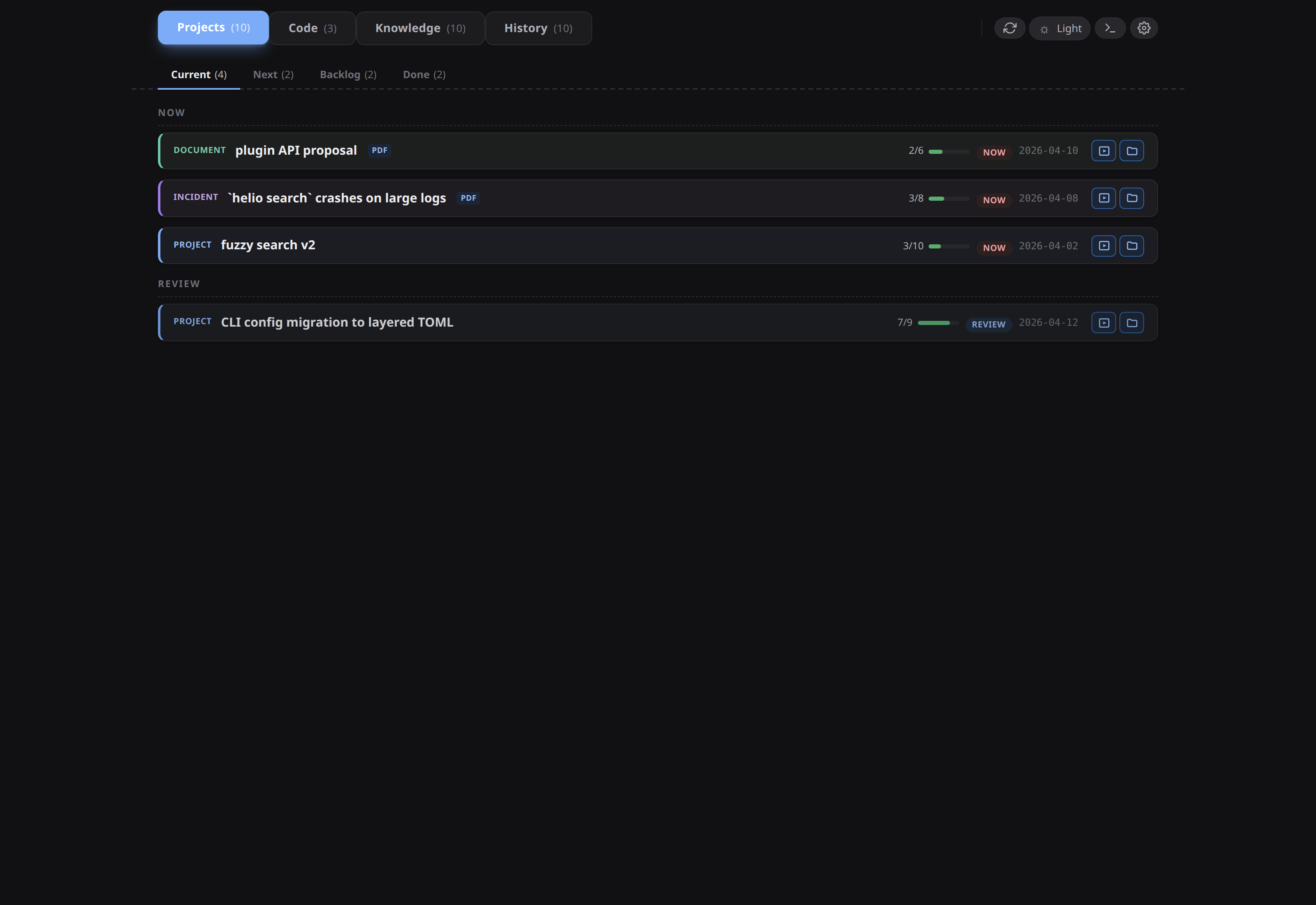
In the Current sub-tab, the item moves from the NOW group to the REVIEW group. You can see exactly this split in the screenshot below — the CLI config migration to layered TOML item is already in review while three others are still under NOW.
7. Close on merge
The PR lands the next day. Open the item, tick the final step, change status from review to done.
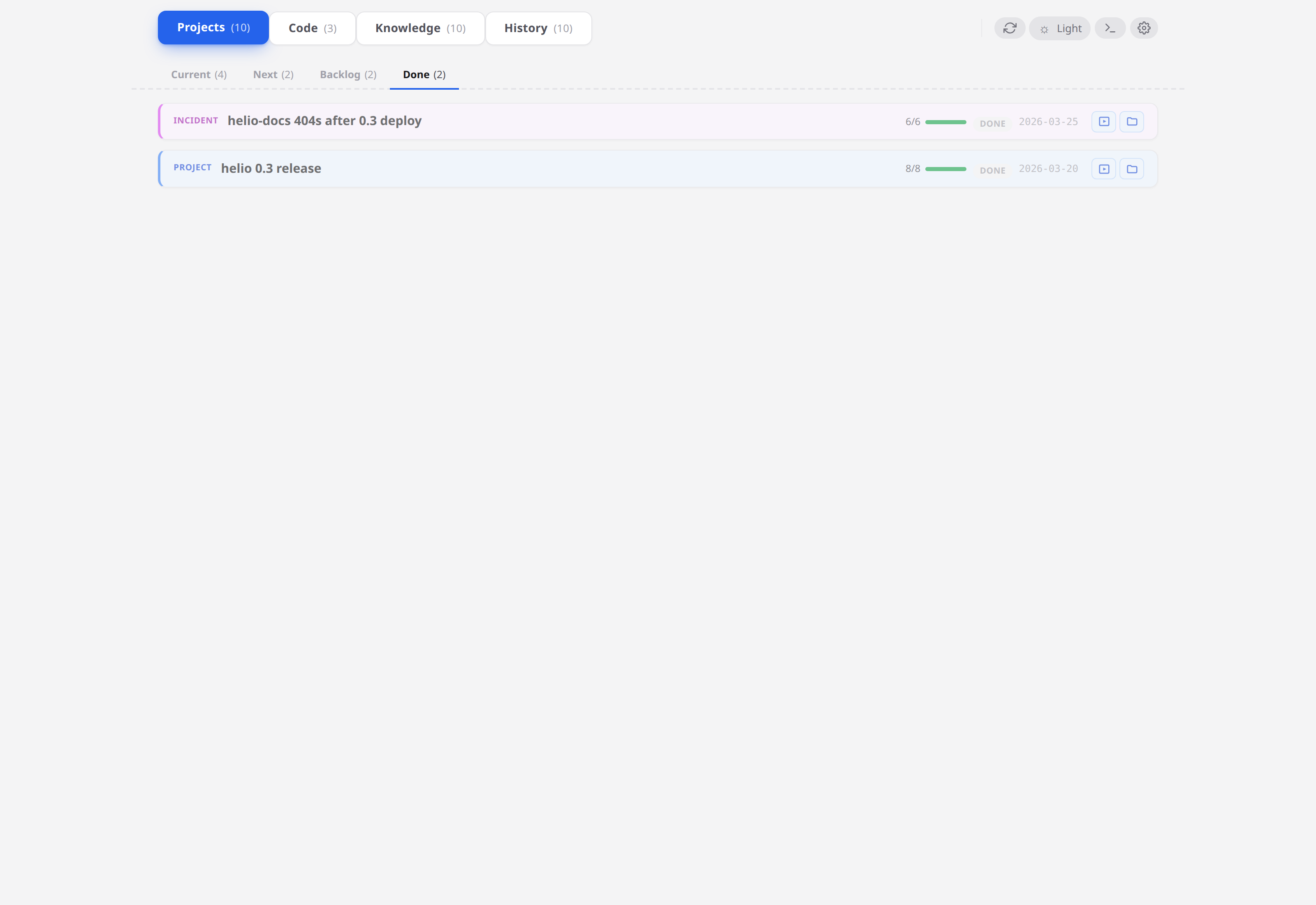
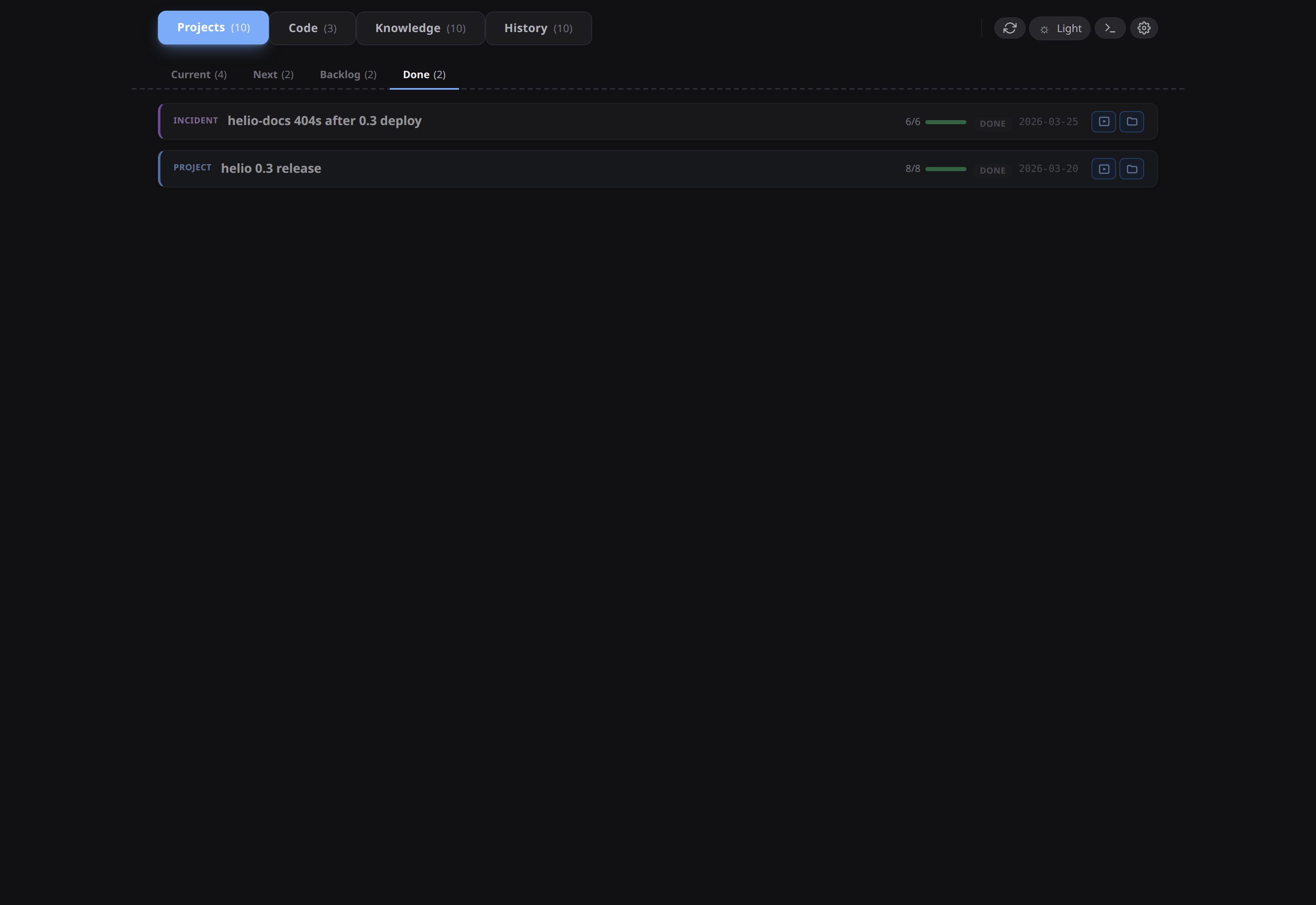
Check Done sub-tab — the item is there alongside last month's archived entries.
8. Find it again later
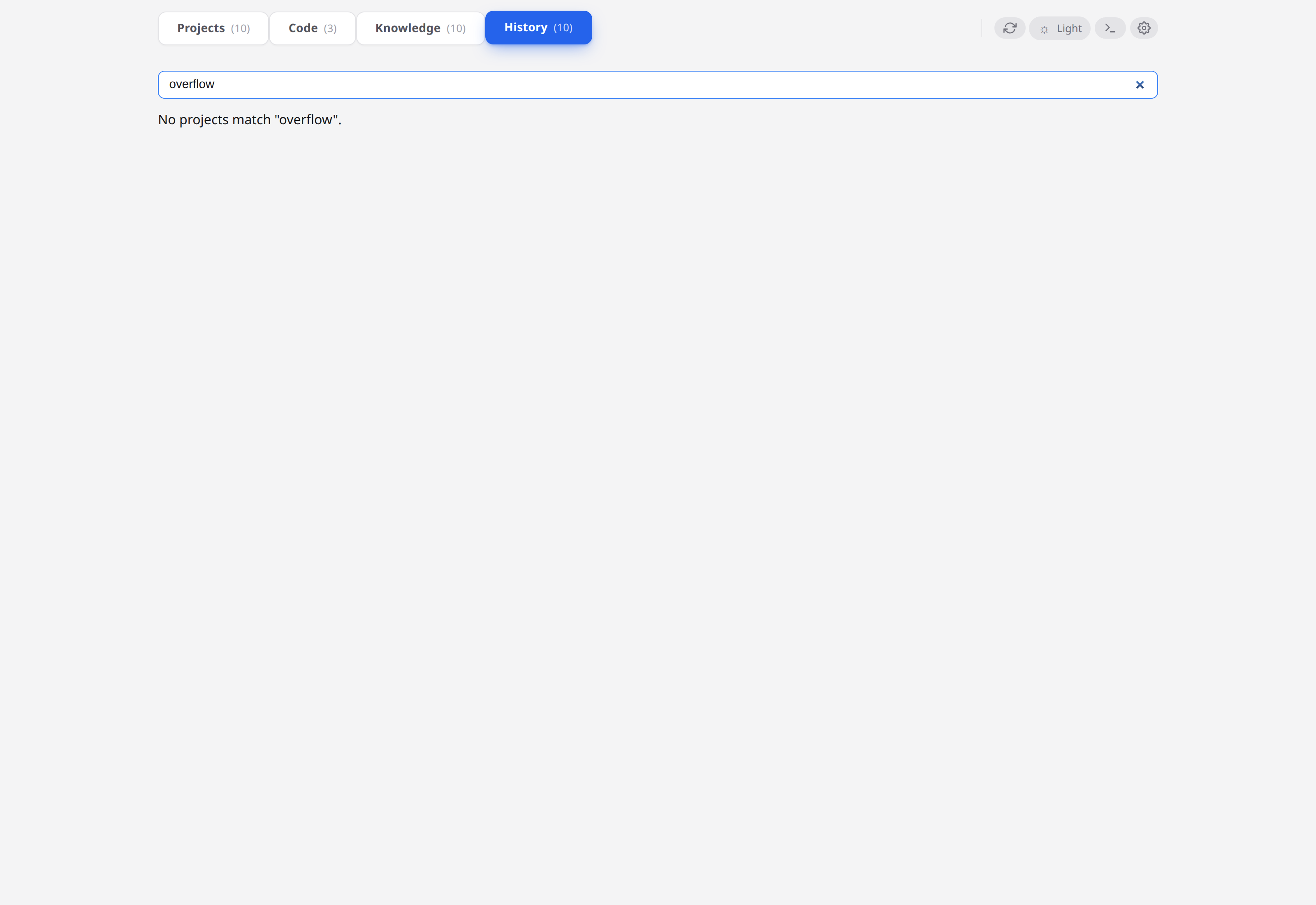
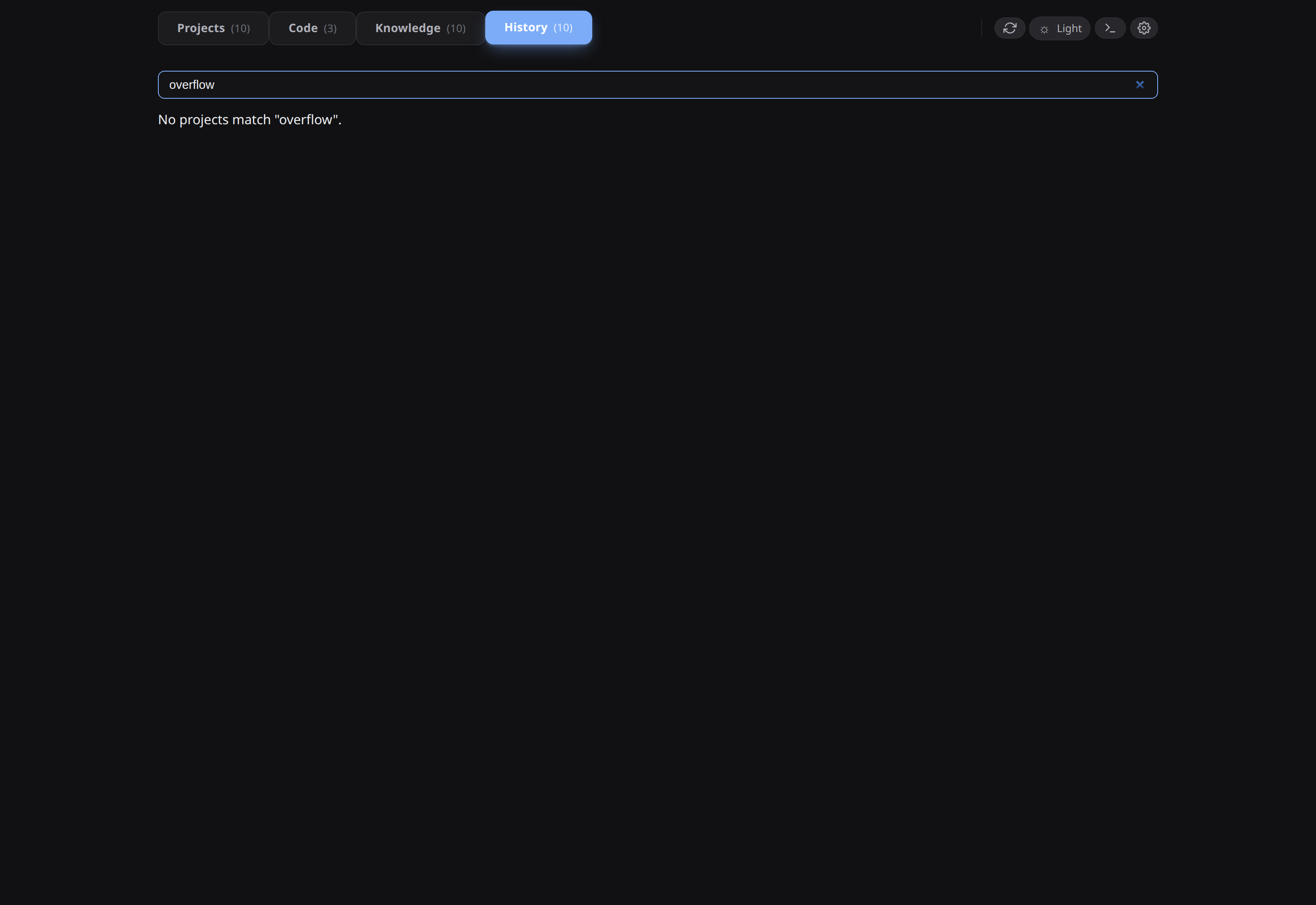
The item stays where it was created. Open the History tab and type overflow — the incident's README and your updated stack-trace note surface together, ranked by relevance.
What you just learned
- The daily loop is: expand item → open repo → run in terminal → document in notes → PR → change status → close. Every step is either a file edit (your editor) or a narrow dashboard mutation (step toggle, status change, note create, config edit).
- The repo strip and the terminal make condash a viable cockpit — you don't have to tab between five tools to do a day of work.
reviewstatus exists precisely for "done on my end, waiting for external signal". Use it.- Screenshot-paste + deliverable PDFs are the two small quality-of-life features that most people miss on first read. Neither is essential, both are worth knowing.
Where to go from here
- The full list of features behind buttons you haven't clicked: Guides.
- The exact shape of every config key, every flag, every README field: Reference.
- The philosophy behind "files-are-the-database": Why Markdown-first.